FREE · LOCAL NETWORK · NO ACCOUNT
A familiar remote.
A little more feel.
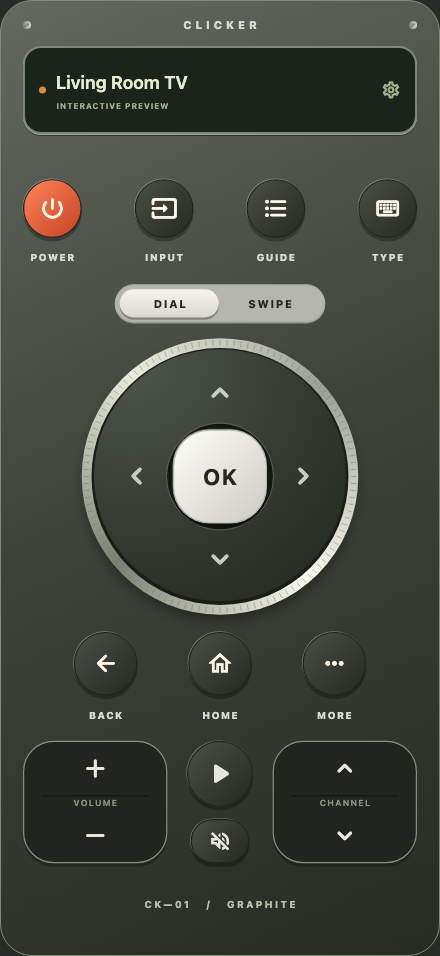
Clicker brings sculpted keys, a tactile dial, swipe navigation, and haptic feedback to your phone. Pairing, saved TVs, and settings live inside the remote’s display.
Contact supportThe first store release is in preparation. Download links will appear here when available. You can also open the browser remote; real TV control there uses a local computer companion.
GET COMFORTABLE
Help with your remote
My TV isn’t appearing
Turn the TV on and open the TV chooser in Clicker’s top display. Confirm that your phone and TV are on a local network that allows them to communicate. Guest and isolated IoT networks can block discovery and control, even when both devices have internet access.
On iPhone, check Settings → Privacy & Security → Local Network and allow Clicker. You can also choose Enter address in the TV chooser and use the TV’s current local IP address.
How do I pair a Google TV or Android TV?
Select the TV, then enter the six-character code shown on the TV into Clicker. Each phone pairs separately. The pairing is saved on that phone, so you do not normally need to repeat it every time.
Which TVs can I use?
Clicker includes adapters for Google TV / Android TV, Roku, Samsung Tizen, and LG webOS. Compatibility and available commands depend on the model, TV software, and enabled network-control features. Samsung and LG models may ask you to approve the connection on the TV.
Clicker cannot control every TV. iPhones do not contain an infrared emitter. An infrared option on Android requires a phone with compatible IR hardware.
Can someone else in my household use it?
Yes. Install Clicker on their phone and pair it with the TV. Your network must allow that phone to reach the TV. Networks with client isolation may need a household media-access policy configured by the network administrator.
Where are light mode, dark mode, and settings?
Tap the cog in the remote’s top display. Choose System, Light, or Dark appearance, adjust haptics, manage TVs, or open the developer profile. Configuration stays in the display.
Can I control my cable box or Xbox?
The Input button can open the TV’s input selector where the TV supports that command. You can then select the HDMI input for your cable box or Xbox. Control of the attached device itself depends on the TV’s HDMI-CEC support and configuration.
How do I remove a saved pairing?
Open the TV chooser, find the saved TV, and remove it. This deletes that saved TV’s pairing credentials from Clicker’s secure storage. You can pair again later.
Still need a hand?
Tell us your phone model, TV model, and what happens when you connect. Keep pairing codes and passwords out of your message.